

SharePoint Access
Please use the following link to access SharePoint.
You will use your ONID email address and password to access SharePoint.
Site Navigation
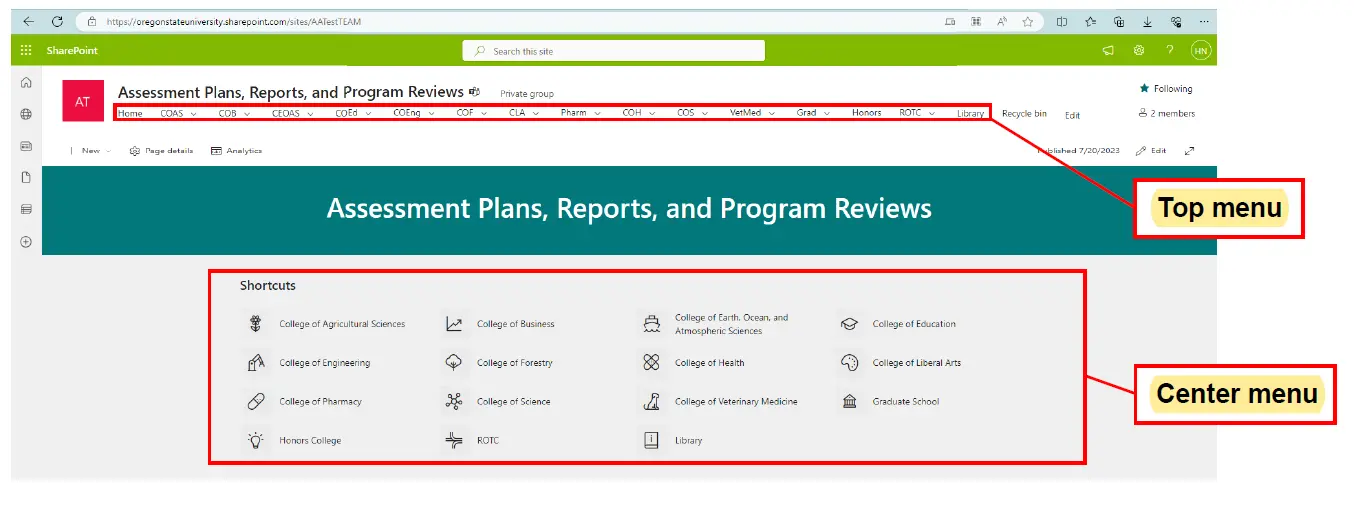
The new SharePoint site uses both top and central menus for navigation. Use either the
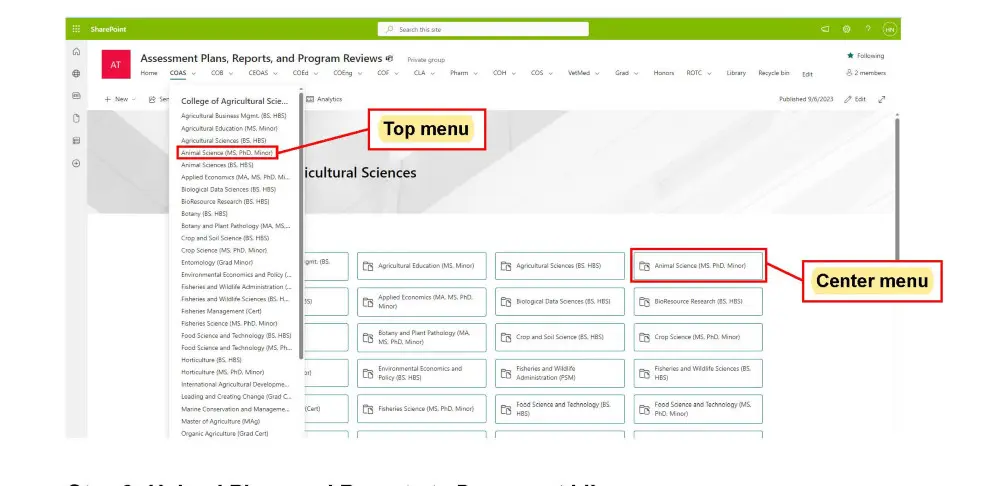
top navigation bar or center menu to navigate first by college, then by program.
Access is limited by program, so you will only be able to navigate to your own program's
document library.
Step 1: Select a College
Step 2: Select a Program
Step 3: Upload Plans and Reports to Document Library
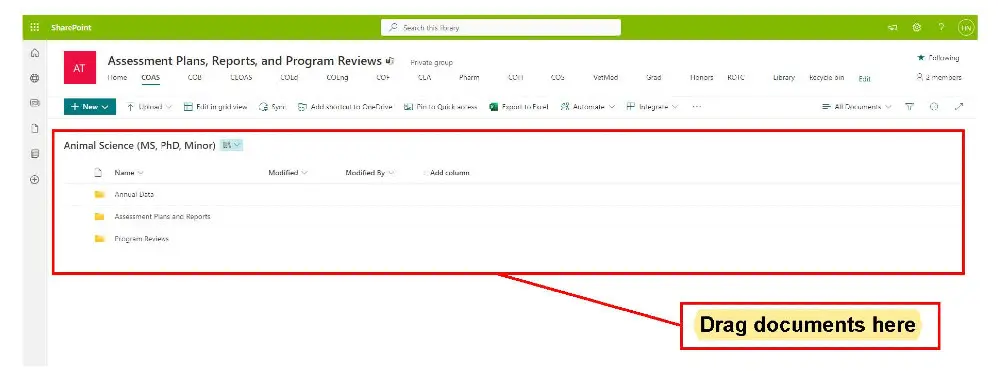
Documents can be uploaded by "dragging" into the screen. Documents can be pulled singly or in groups into the folders in the red box.
Documents can also be uploaded by choosing the option for the tool bar:

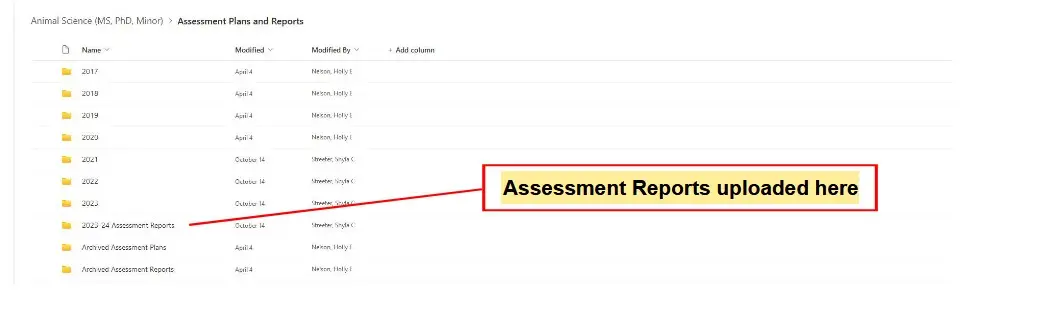
Assessment reports are for the previous academic year, you will see a folder labeled as such within the "Assessment Plans and Reports" folder.
Site Organization Tips
•If you would like to add folders to your page, select the “New” button on the toolbar and select “Folder”:
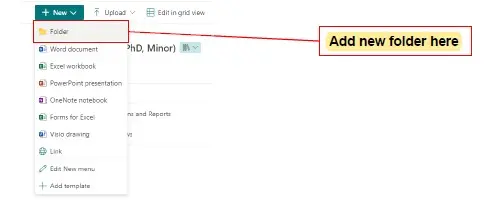
Files already in SharePoint can be dragged into the folder of your choice.
•If you need to rename a file or folder, hover the mouse over the title and select the options menu:
For additional information or help with SharePoint, please contact Heath Henry or Nancy Barbour.